> ## Documentation Index
> Fetch the complete documentation index at: https://withfew.app/docs/llms.txt
> Use this file to discover all available pages before exploring further.
# Quickstart
> Install WithFew, and what happens in the first day.
## 1. Install the extension
Chrome, and Chromium browsers like Edge, Brave and Arc.
Few starts working the moment it installs. There is nothing to configure, and
you do not have to open the editor.
## 2. Start your free week
A tab opens asking for your email address. You get a sign-in link, and your
seven-day trial starts when you use it — no card.
Few keeps working for a week without an account, so you can try it first. After
that it asks you to sign in. See [Your account](/docs/guides/account).
## 3. Browse normally
Open tabs, research, compare, move on. Few watches which tabs you actually come
back to.
A tab you haven't used joins **Bin** — a collapsed grey group at the end of
your tab strip — and is unloaded, so it stops using memory. One notification
tells you how many moved, with **Undo**.
Open a tab in Bin and it leaves Bin and comes back as a normal tab. Nothing
to restore, nothing to remember.
Tabs you never came back to are closed.
## 4. Check on it
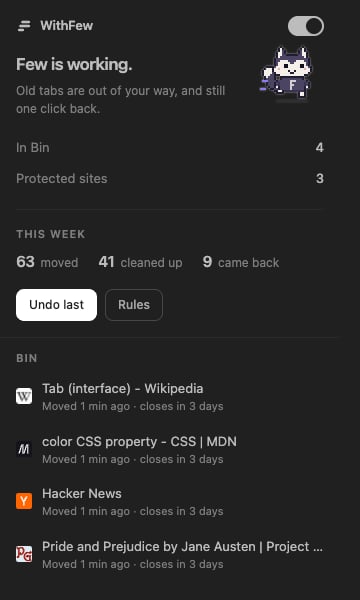
The number on the Few icon in your toolbar is how many tabs are in Bin; with
nothing in Bin there is no number at all. Click the icon and the popup shows
what is in Bin, what you have protected, and what Few has done this week.
 ### Meet Few
The little fox in the popup is Few, and it acts out what it's doing:
| Few is… | Because… |
| --------------------- | -------------------------------------------------- |
| At a laptop | there are tabs in Bin to look after |
| Wondering, with a "?" | nothing has needed moving yet |
| Running | it has just moved tabs to Bin |
| Walking | it has just tidied tabs out of Bin |
| Waving | a tab came back, or you undid something |
| Celebrating | it has moved 10, 50, 100… tabs so far |
| Sad | it has paused: a trial ended, or you're signed out |
| Asleep | you switched it off |
The toolbar icon plays the same for a second when something happens. To turn
Few off, open **Settings** in the editor and switch off **Show Few**. If your
computer is set to reduce motion, Few stands still.
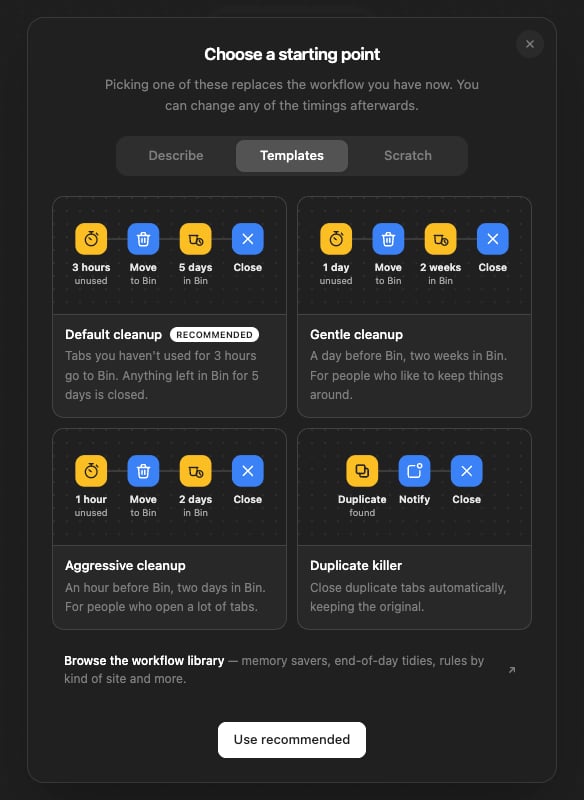
From there, **Rules** opens the editor, where you can change the timings or
start from a different template.
### Meet Few
The little fox in the popup is Few, and it acts out what it's doing:
| Few is… | Because… |
| --------------------- | -------------------------------------------------- |
| At a laptop | there are tabs in Bin to look after |
| Wondering, with a "?" | nothing has needed moving yet |
| Running | it has just moved tabs to Bin |
| Walking | it has just tidied tabs out of Bin |
| Waving | a tab came back, or you undid something |
| Celebrating | it has moved 10, 50, 100… tabs so far |
| Sad | it has paused: a trial ended, or you're signed out |
| Asleep | you switched it off |
The toolbar icon plays the same for a second when something happens. To turn
Few off, open **Settings** in the editor and switch off **Show Few**. If your
computer is set to reduce motion, Few stands still.
From there, **Rules** opens the editor, where you can change the timings or
start from a different template.
 How tabs move in, come back, and eventually go.