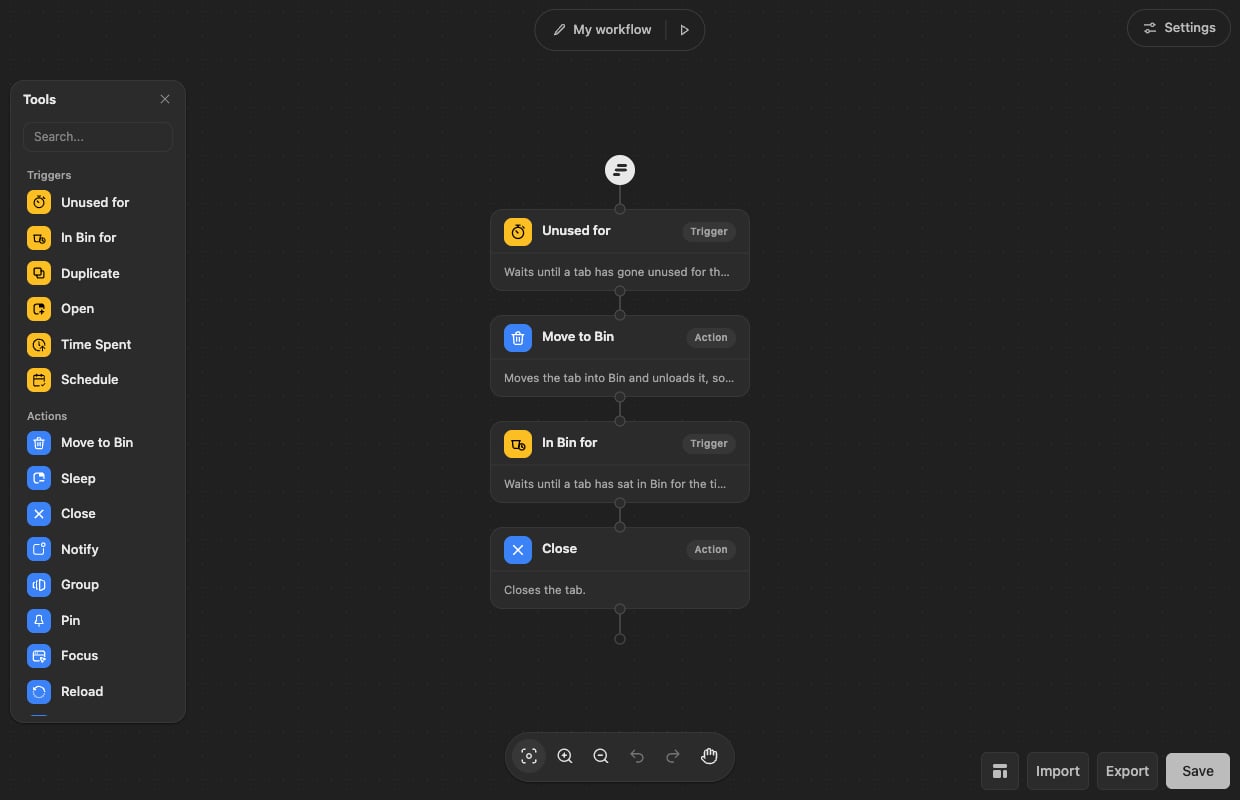
Changing a step
Click a step and its settings open beside it.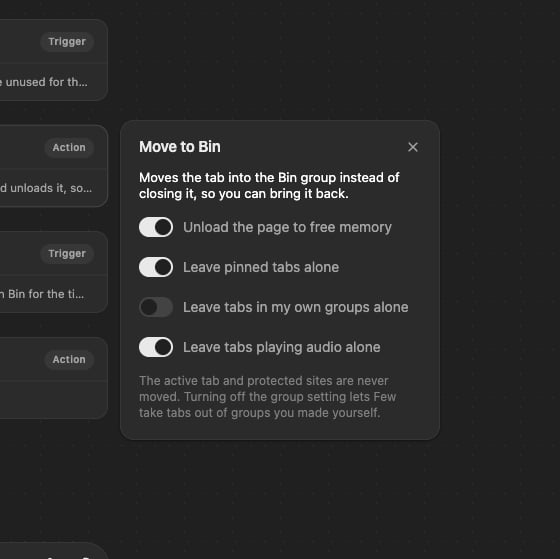
Blocks
Triggers
Triggers
Unused for — the tab has gone untouched for a length of time.In Bin for — the tab has been sitting in Bin long enough.Time Spent — you have spent a total amount of time on the tab.Open — the tab has just been opened, optionally matching a rule.Duplicate — the same page is open in another tab.Schedule — at a time of day you choose.
Actions
Actions
Move to Bin — the safe option: group, unload, keep.Close — close the tab, with a floor for how many tabs must stay open.Sleep — unload the tab without moving it.Notify — a notification instead of doing anything.Group, Pin, Focus, Reload, Bookmark — the rest of the
everyday tab operations.
Logic
Logic
Condition — branch on the tab’s address, title, kind of site, age or
group, or the time and day — see below.Delay — wait before the next step.
Conditions
A Condition splits the workflow: tabs that match go down If, everything else down Else. Add as many conditions as you like, and choose whether a tab must match all of them or any one.- Kind of site — AI, files, chat, news, shopping, video and so on. Tick several and any of them matches. Few works this out on your device (how); a tab it can’t place matches none.
- Title contains — a word or phrase in the tab’s title. Separate several with commas; any of them matches.
- Domain, address — a site, or part of an address. Domains can be a comma-separated list too.
- Pinned, playing sound, in a group, the tab you’re on, how long it’s been open, number of tabs, time of day, day of the week.
Describe it
At the top of every Condition, Describe it drafts the conditions from a sentence: video and social sites in the evening, anything on GitHub titled “review”. Press Generate and Few fills in the list below, with a line saying what it understood. Check it, change anything, and save as usual.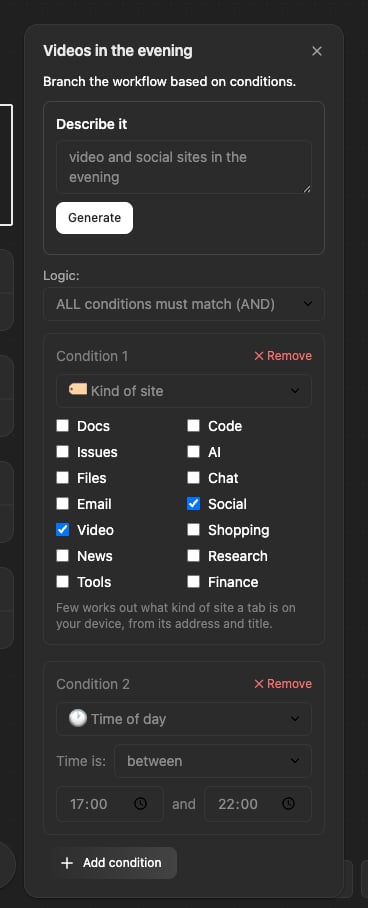
- Site names and words in quotes are read from your sentence on your device. Kinds of site, times, days and tab ages are drafted by our API.
- Only the sentence is sent, when you press the button. Your tabs are never sent. Privacy has the details.
- If your sentence describes tabs to keep, Few says so: put the steps you want for everything else under Else.
- It needs you to be signed in, with a trial or plan. Every condition can be set by hand without it.
Testing before you trust it
The ▷ button beside the workflow’s name reports what the workflow would do to the tabs you have open right now. Nothing is moved, closed or grouped — it is a preview.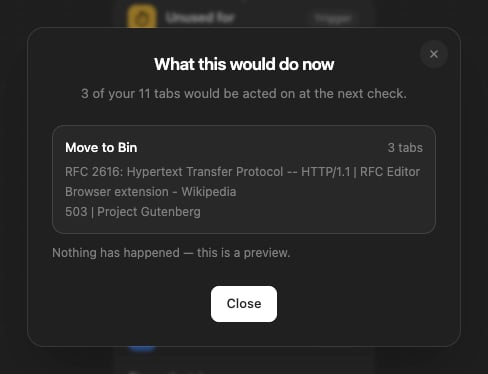
Starting over
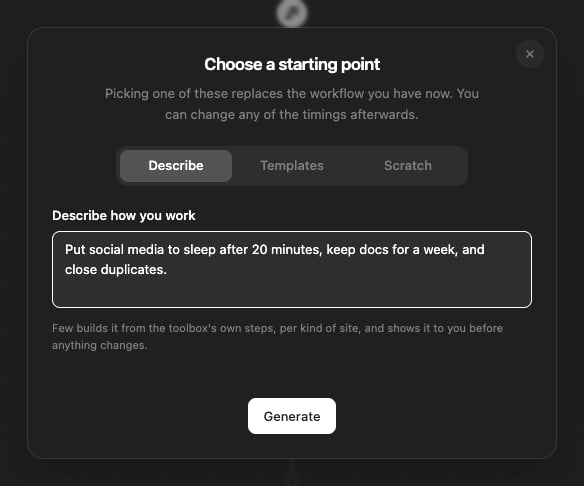
The templates button offers three ways to start. Templates has the recommended cleanup, a gentler one, a more aggressive one and a duplicate remover; Scratch is a blank canvas; Describe is below. For more — memory savers, end-of-day tidies, rules by kind of site — see the workflow library: download one and bring it in with Import.Describe how you work
In the templates dialog, choose Describe and say how you’d like your tabs handled — put social media to sleep after 20 minutes, keep docs for a week, and close duplicates — then press Generate. Few builds a workflow from the same steps as the toolbox and shows it before anything changes: a picture of the steps, and a line for each kind of site. Use this puts it in the editor, where you can change any of it; Edit the sentence lets you try again.