How to reopen closed tabs in Chrome, and get a tab back from Bin
28 September 2026 · 3 min read
Built into Chrome
- Ctrl+Shift+T (Cmd+Shift+T on a Mac) reopens the tab you closed last. Press it again for the one before, and so on.
- ⋮ → History → Recently closed lists the last few tabs and windows to pick from.
- Older than that, History (Ctrl+H, or Cmd+Y on a Mac) has every page you visited.
With Few: tabs wait in Bin first
WithFew (our extension) doesn't close a tab you stopped using. It moves it into a collapsed tab group called Bin, unloaded so it uses no memory, and only closes it days later if you never went back. Bringing one back:
- From the tab strip. Click the Bin group to open it, click the tab, and stay on it for a few seconds: it leaves Bin. A tab you only glance at stays where it is, so you can look through Bin for the one you want.
- From Few's popup. Click Few in Chrome's toolbar: every tab in Bin is listed, with when it moved and when it closes. Click one, or point at it and choose Restore. Protect site brings it back and tells Few to leave that site alone from now on.
- Undo. When Few moves tabs, a notification says how many, with Undo. Missed it? Undo last in the popup undoes the most recent move, for an hour afterwards.
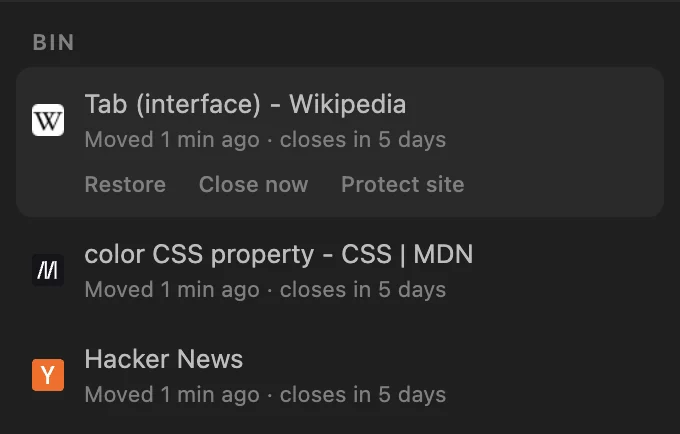
After Few has closed it
When tabs leave Bin for good, a notification says so, with Undo to reopen them; Undo last in the popup does the same for an hour. After that, Chrome's History still has every page.
Make it less likely
- Give Bin longer: in Few's editor, set the In Bin for step to two weeks.
- Keep a copy: the Save before closing workflow bookmarks each tab just before Few closes it.
- Protect the sites you always want open. Pinned tabs are never touched either.
WithFew is free for 7 days, then $5 a month.