Chrome slow with too many tabs? What actually helps
28 September 2026 · 4 min read
Every open tab costs memory, and some cost a lot: video, maps, big web apps and pages full of ads. Past a few dozen, Chrome slows down, the fans spin up, and the tab you need is a sliver of an icon somewhere on the right. Here's what helps, from quickest to most lasting.
1. Turn on Memory Saver
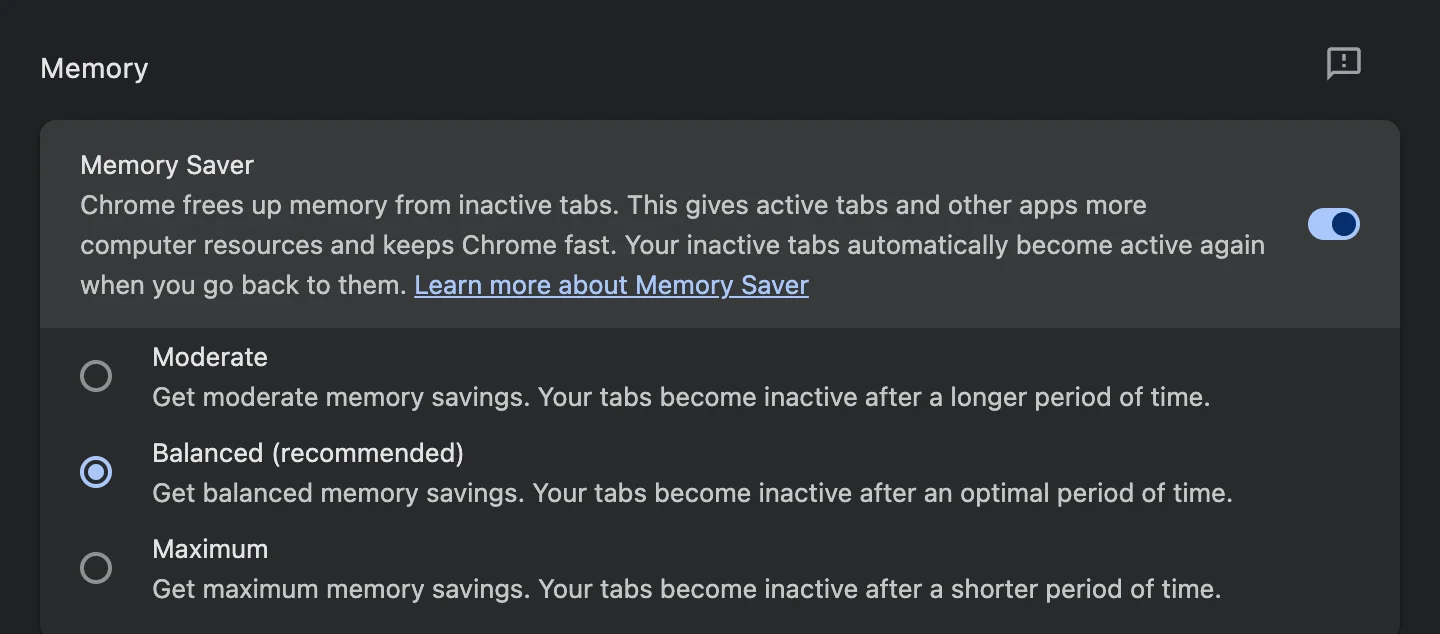
Settings → Performance → Memory Saver. Chrome unloads tabs you haven't used for a while and reloads them when you click them. This is the biggest single fix for slowness. Recent versions let you choose how eagerly: Moderate, Balanced or Maximum. Two things to know:
- A tab that reloads may lose what you hadn't saved, such as a half-filled form.
- Sites that must stay live (a call, a music player, a dashboard) can be added to the list of sites Chrome always keeps active, on the same settings page.
2. Find the tabs using the most
Chrome's own Task Manager lists every tab with its memory and CPU use. Press Shift+Esc on Windows or ChromeOS; on a Mac, open Window → Task Manager. Sort by memory, and close or pin what's at the top. Extensions appear there too, and a misbehaving one is a common cause of slowness.
3. Find a tab instead of keeping it in view
Much of the reason tabs stay open is fear of losing them. Ctrl/Cmd+Shift+A searches your open tabs by name, and Ctrl/Cmd+Shift+T reopens the last tab you closed. Knowing both makes closing tabs much less risky.
4. Group what belongs together
Right-click a tab, choose Add tab to new group, and collapse groups you're not using. A collapsed group takes one slot in the tab strip instead of ten. See how to group tabs automatically if you'd rather not do it by hand.
5. Keep the count down without deciding every day
Memory Saver makes tabs cheaper; it doesn't make there be fewer of them. The lasting fix is having tabs you've stopped using leave on their own. That's what WithFew (our extension) does: tabs unused for three hours move into Bin, a collapsed, unloaded group in your tab strip, and close after five days unless you go back to them, with Undo. The rest are grouped by what you're doing. See how to close tabs automatically for how that works and what to look for in any tool that does it.

