Chrome tab shortcuts: a cheat sheet for people with too many tabs
1 October 2026 · 4 min read
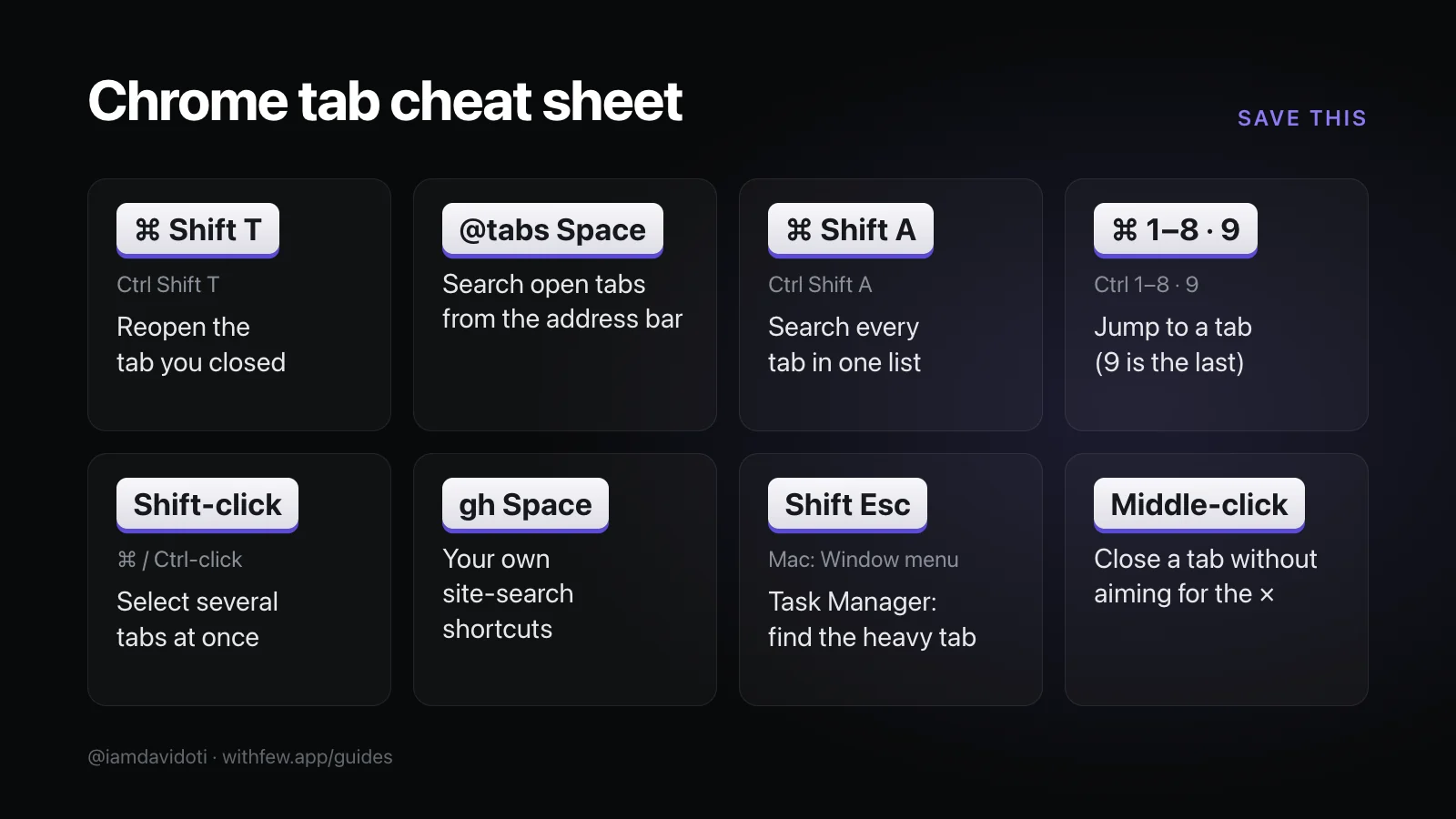
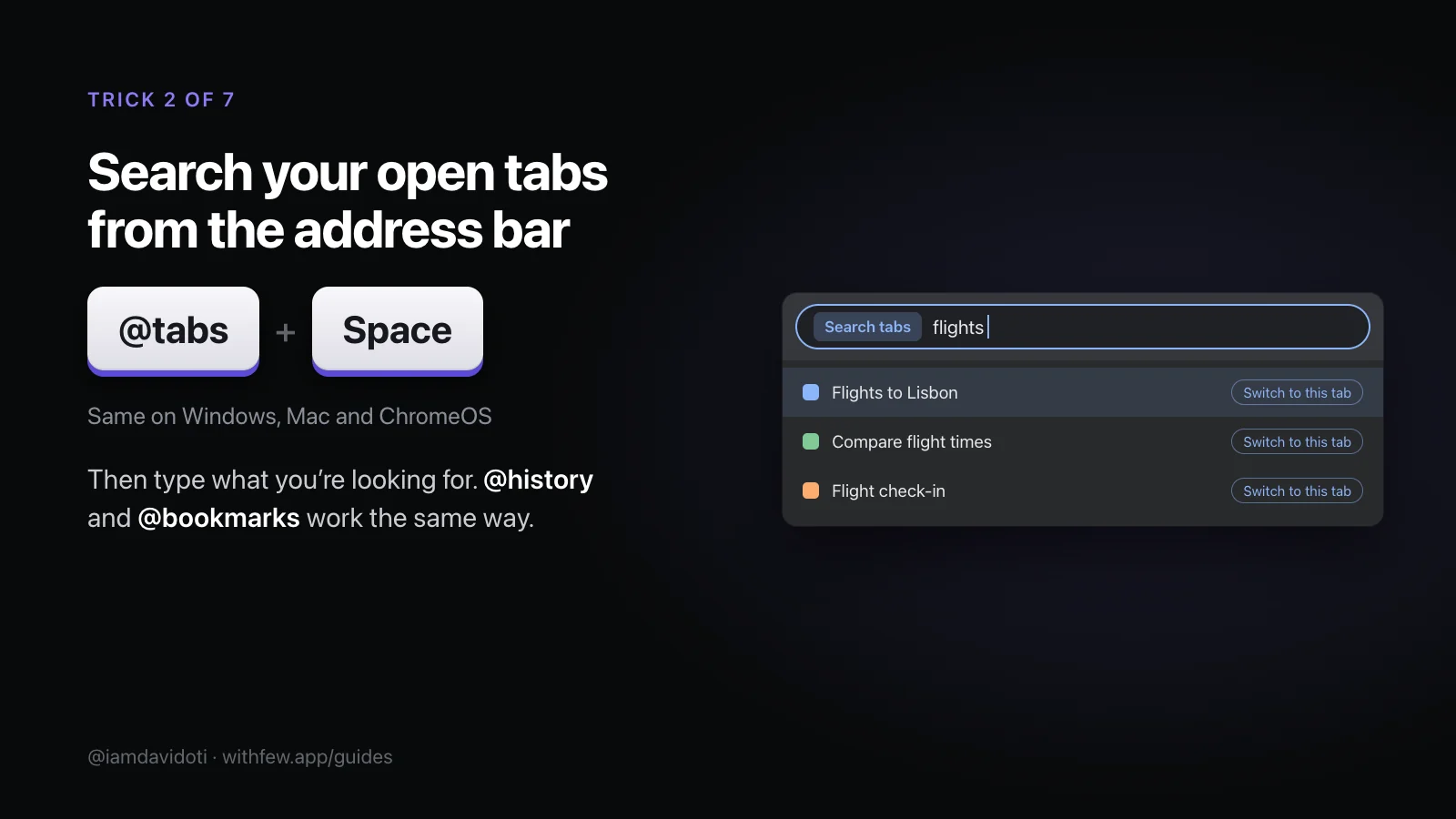
Most tabs stay open for one reason: finding them again feels like more work than leaving them there. These seven tricks are built into Chrome, and together they make finding a tab quicker than keeping it in view. Each one is on a card you can save, and the whole set is on one cheat sheet.
1. Bring back the tab you just closed
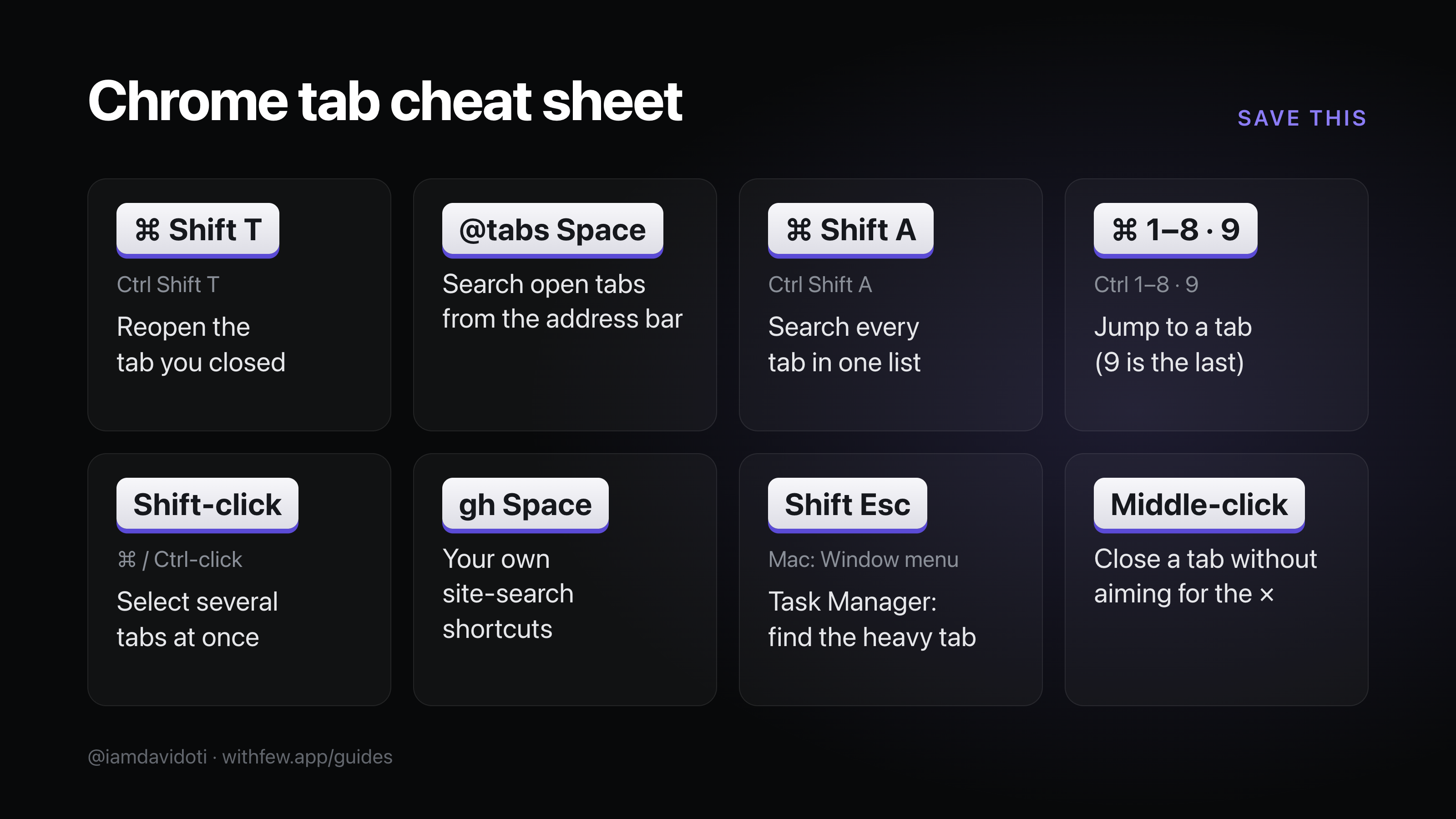
Ctrl/Cmd+Shift+T reopens the last tab you closed. Press it again and it goes further back, and a window you closed comes back with every tab in it. Recently closed tabs and windows are also under History → Recently closed. Once you know closing can be undone, closing stops feeling risky.
2. Search your open tabs from the address bar
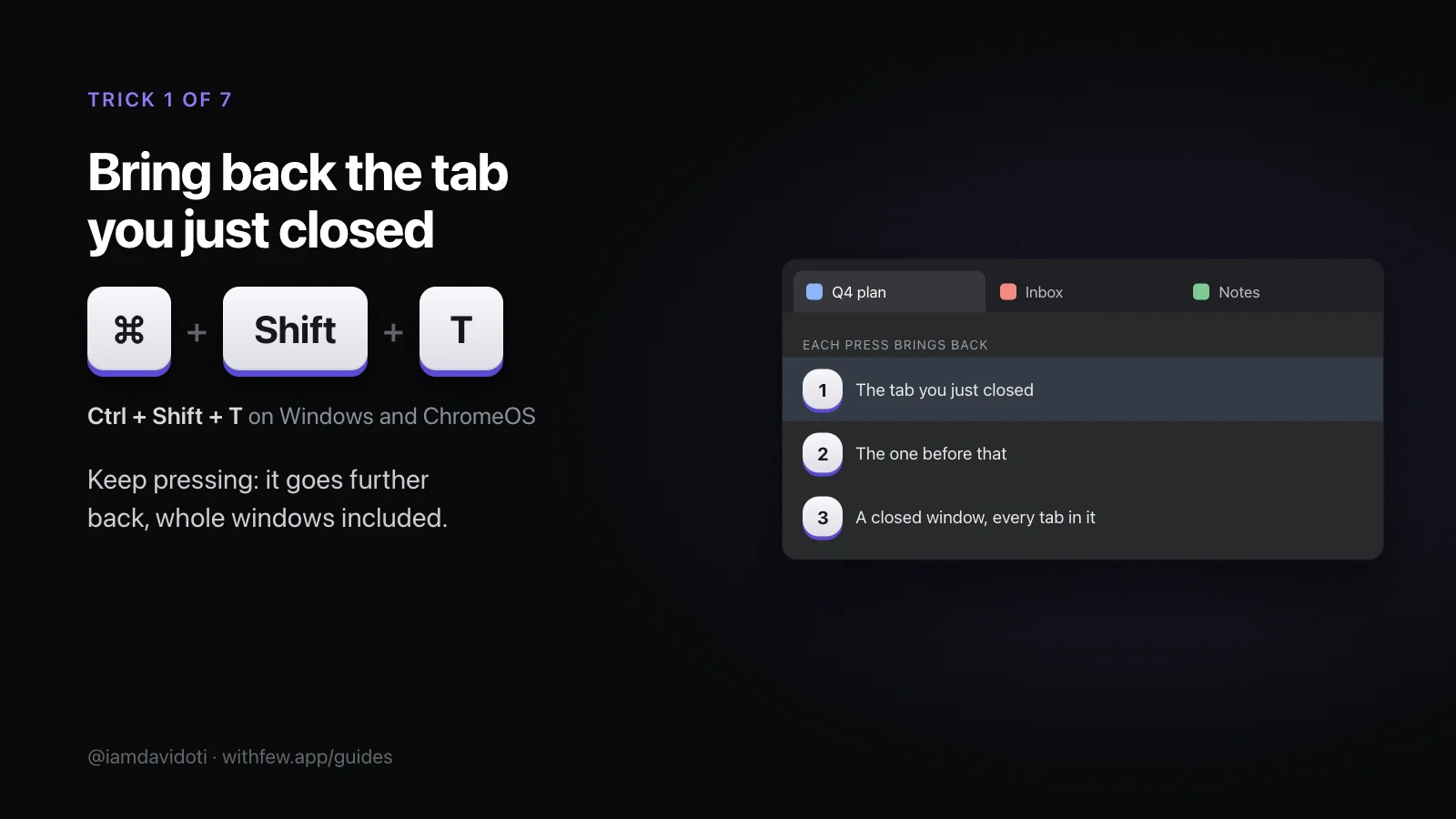
Type @tabs, press Space, then type what you're looking for: Chrome lists the open tabs that match, each with Switch to this tab. @history and @bookmarks work the same way.
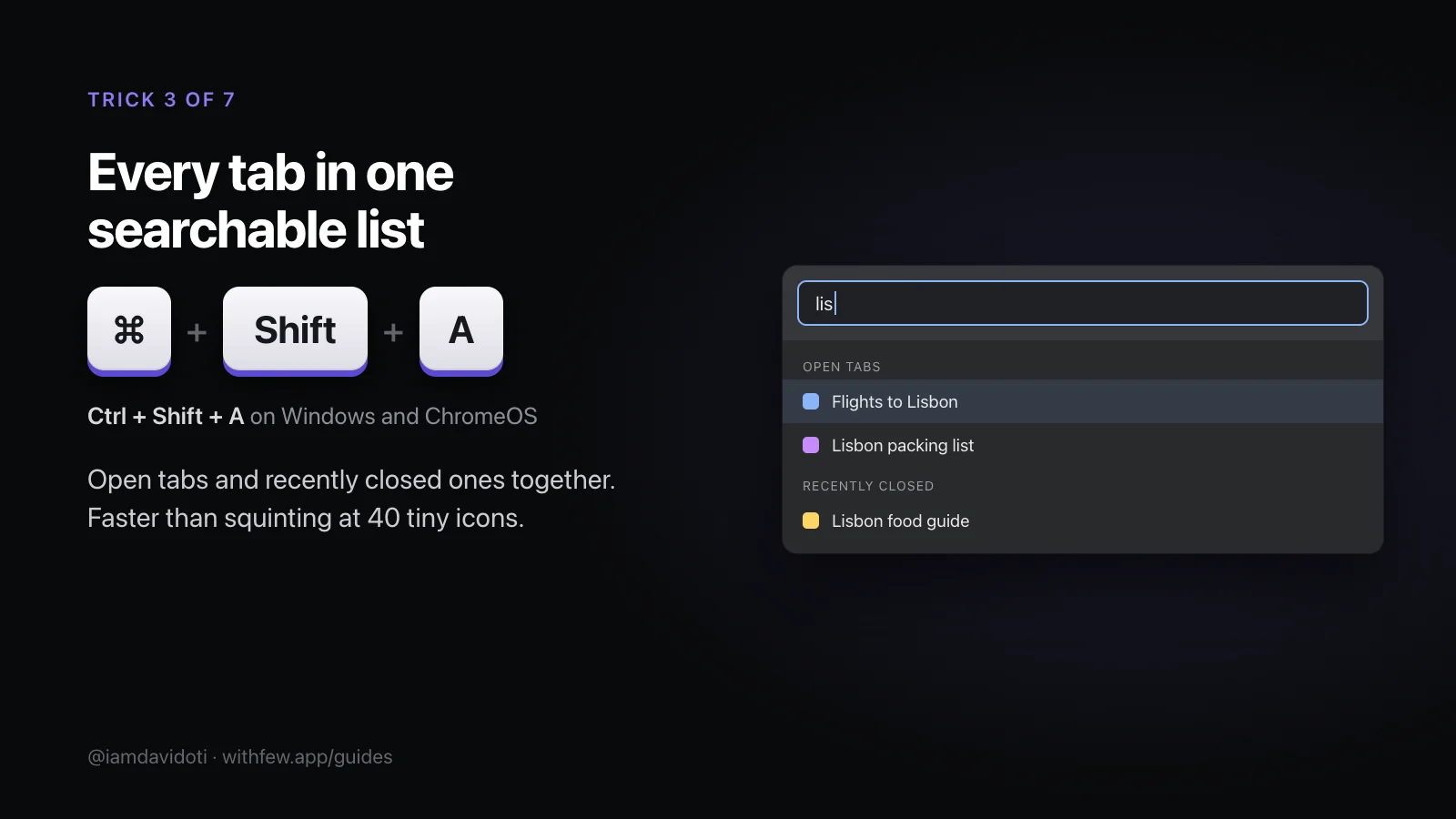
3. Every tab in one searchable list
Ctrl/Cmd+Shift+A opens tab search: every open tab, in every window, plus the ones you closed recently. Start typing to narrow it down. It's the quickest way through a tab strip where every tab is a sliver.
4. Jump straight to a tab
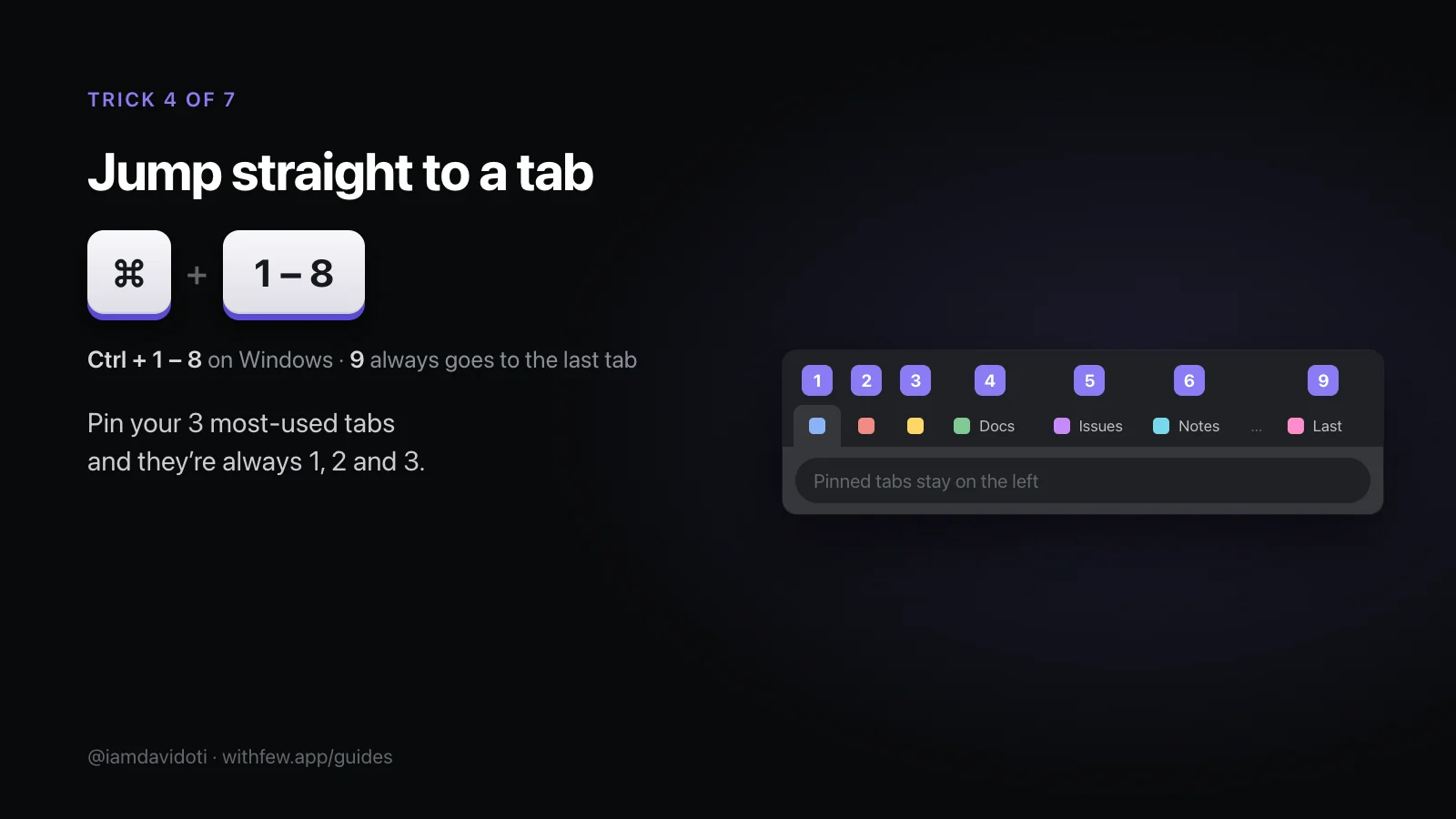
Ctrl/Cmd+1 to Ctrl/Cmd+8 go to that tab, counting from the left. Ctrl/Cmd+9 always goes to the last one, however many there are. Pinned tabs sit on the left, so pin the three you use most (right-click a tab, then Pin) and they're always 1, 2 and 3.
5. Move or group several tabs at once
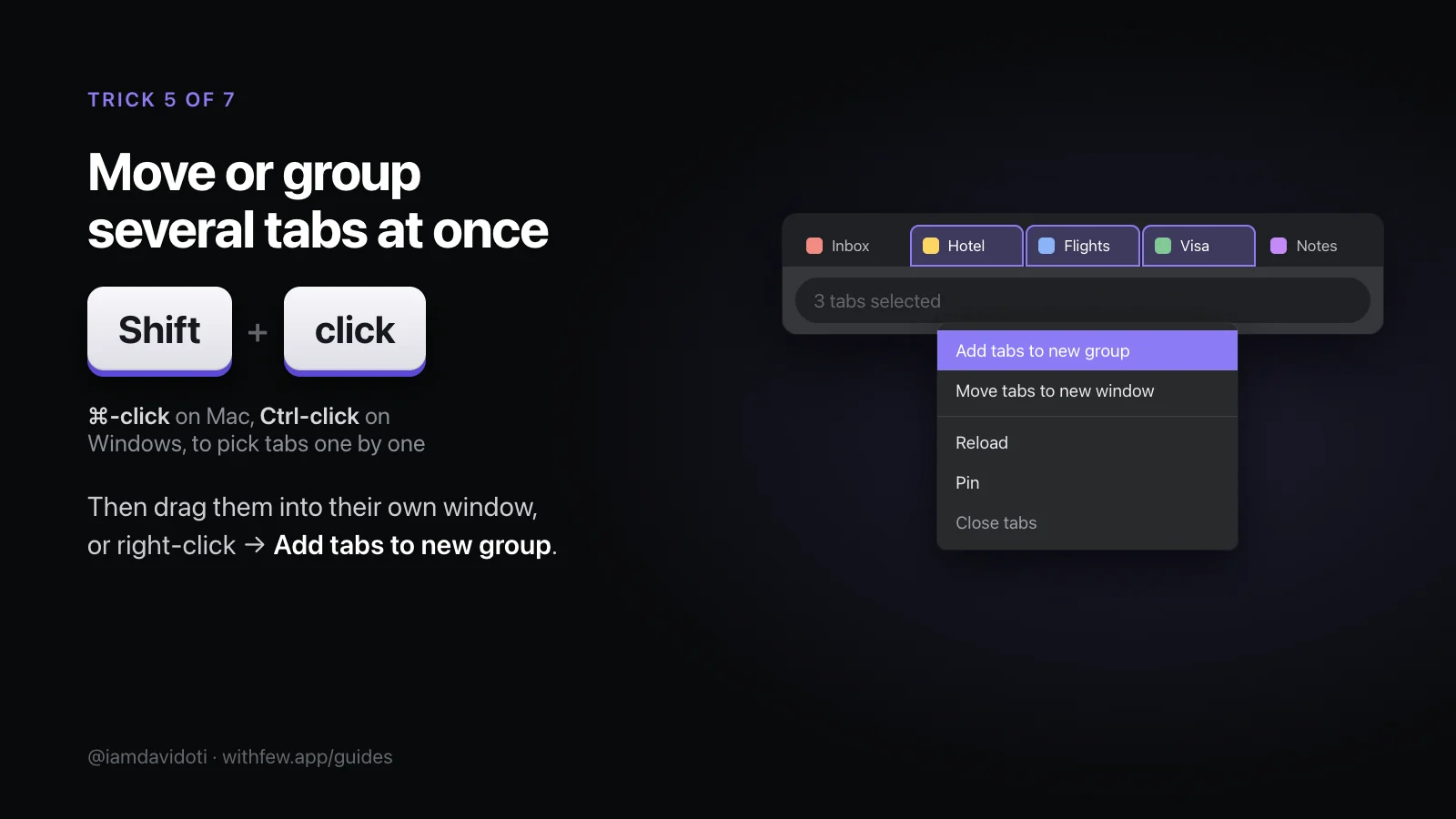
Shift-click a tab to select every tab between it and the current one; Cmd-click on a Mac, or Ctrl-click on Windows, picks tabs one by one. Then drag them out into a window of their own, or right-click and choose Add tabs to new group. For grouping without doing it by hand, see how to group tabs automatically.
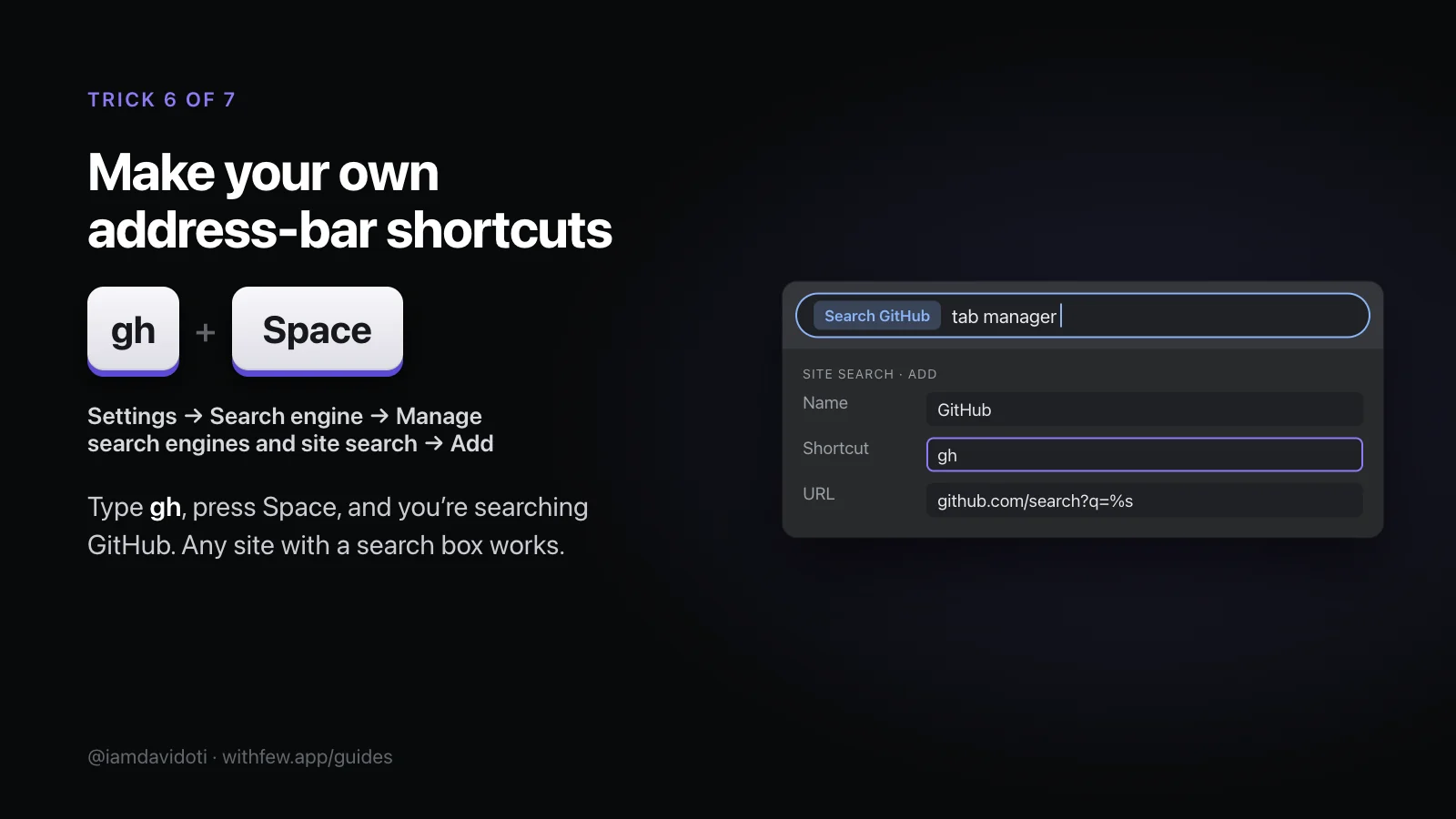
6. Make your own address-bar shortcuts
Open Settings → Search engine, then Manage search engines and site search, and under Site search choose Add. Give it a name, a shortcut such as gh, and the site's search address with %s where the words go. Then type gh, press Space, and you're searching that site. Any site with a search box works, including your company's wiki.
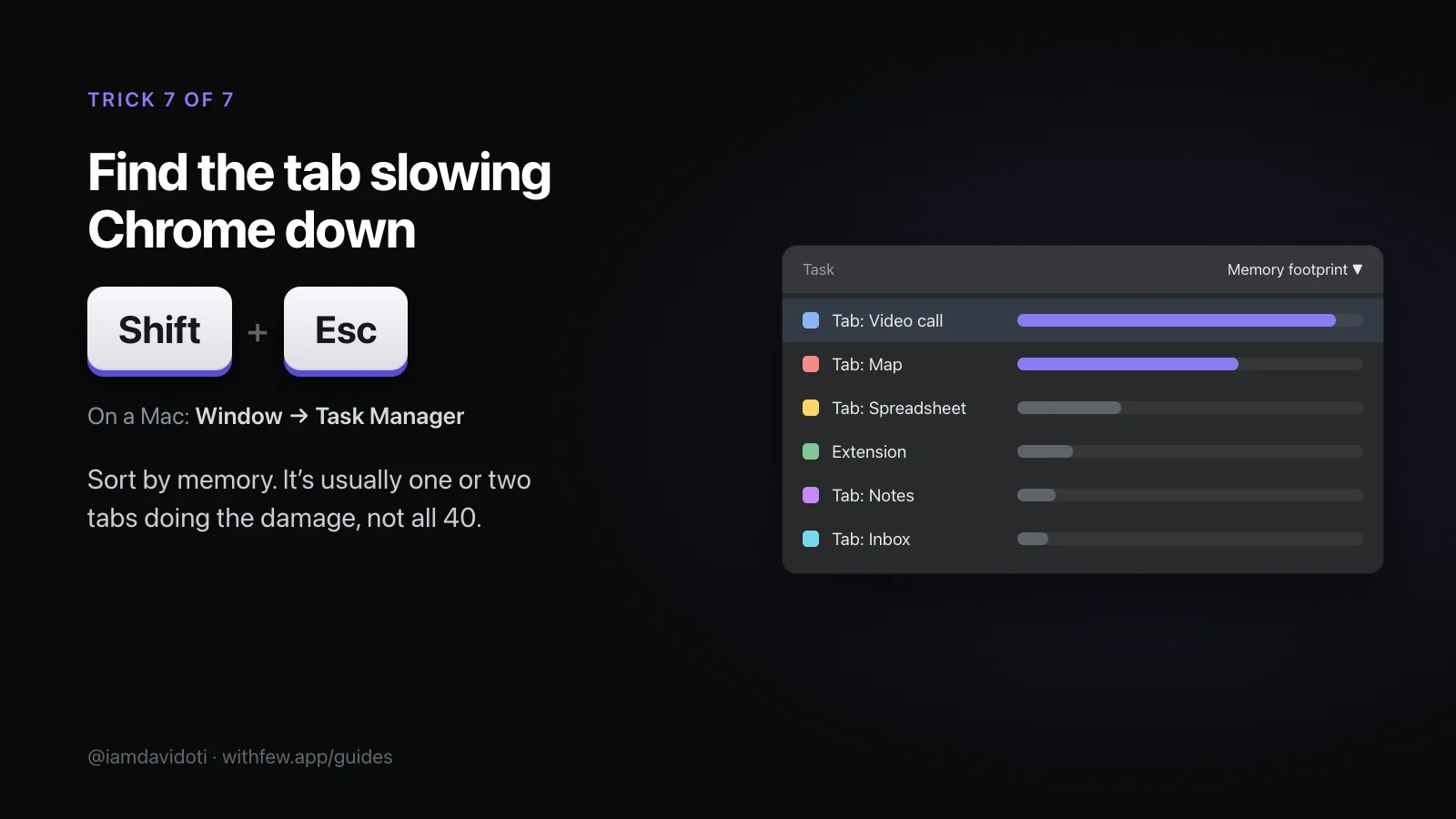
7. Find the tab slowing Chrome down
Chrome's Task Manager lists every tab and extension with what it's using. Press Shift+Esc on Windows and ChromeOS; on a Mac, open Window → Task Manager. Sort by memory: it's usually one or two tabs doing the damage, not all of them. There's more on this in Chrome slow with too many tabs?
More tab shortcuts
| Windows and ChromeOS | Mac | |
|---|---|---|
| New tab | Ctrl+T | Cmd+T |
| Close tab | Ctrl+W | Cmd+W |
| Next tab | Ctrl+Tab | Cmd+Option+Right arrow |
| Previous tab | Ctrl+Shift+Tab | Cmd+Option+Left arrow |
| New window | Ctrl+N | Cmd+N |
| New Incognito window | Ctrl+Shift+N | Cmd+Shift+N |
| Go to the address bar | Ctrl+L | Cmd+L |
| Bookmark all open tabs | Ctrl+Shift+D | Cmd+Shift+D |
| Close a tab | Middle-click it | Middle-click it |
The whole cheat sheet